Image Aligner
At a Glance
Section titled “At a Glance”What it does: Detects an ArUco marker in every frame and shifts each frame horizontally so the marker sits where it was in the first frame. Use it when the plate or camera shifted sideways during the timelapse.
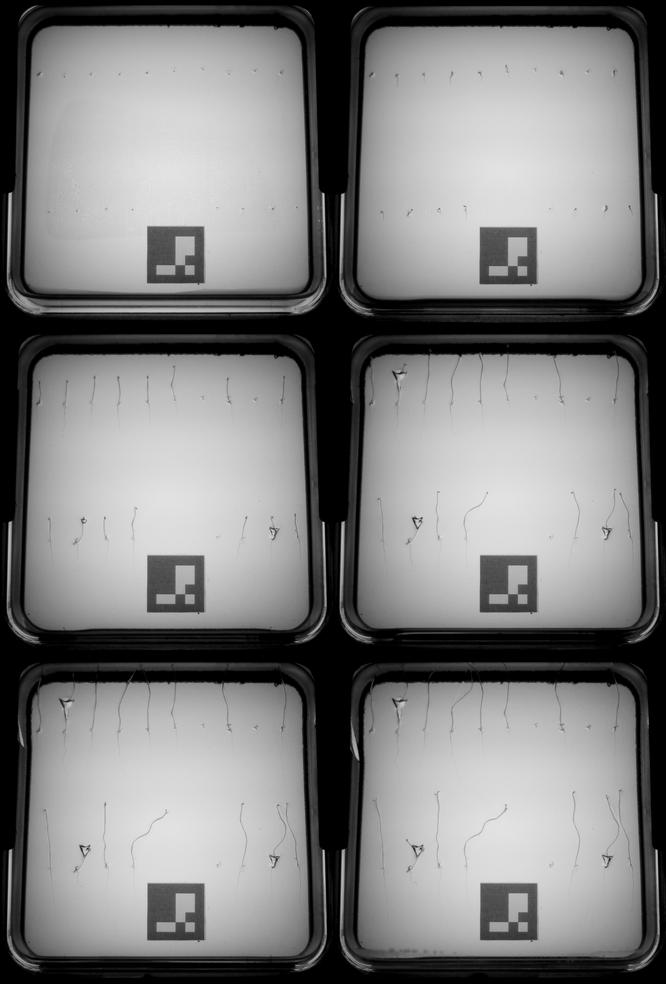 Before alignment
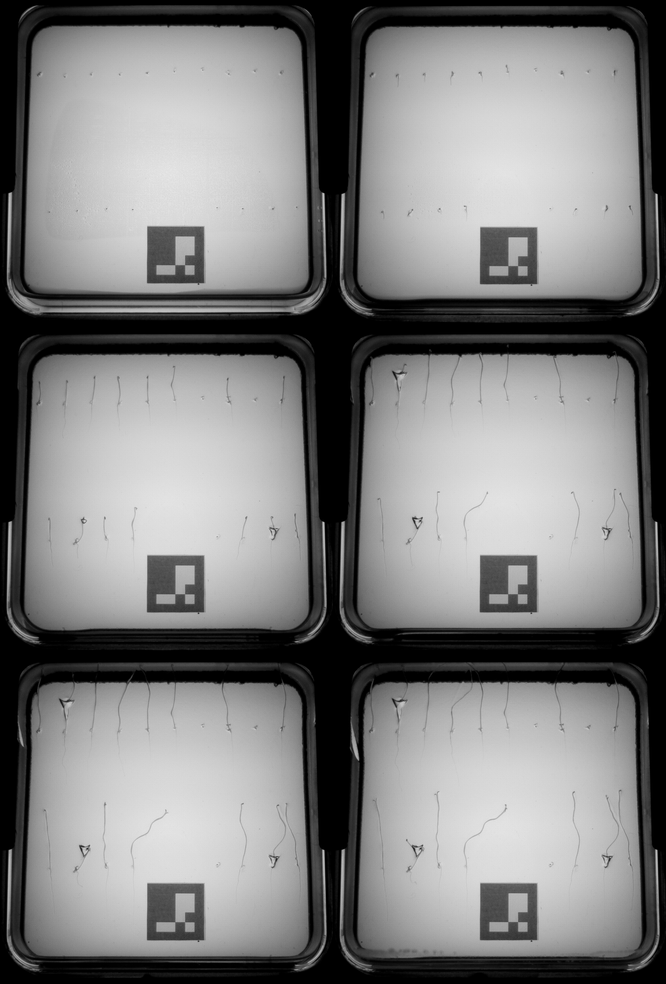 After alignment
Before You Start
Section titled “Before You Start”- An ArUco marker from the
DICT_4X4_1000dictionary must be visible in the images. This is the same marker family the Analysis app uses for scale calibration. - Images are
.png,.tifor.tiff, directly inside each plate folder. - The marker must be detected in the first frame. It is the reference. If it is not, the app warns “No ArUco marker detected in the first frame — images left unaligned.” and writes unmodified copies.
Launch the App
Section titled “Launch the App”Launch the app through the provided “ChronoRoot Image Aligner” desktop shortcut created by the installer
Alternatively: Launch the program through the CLI using this bash script
conda activate ChronoRootcd imageAlignerpython run.pyHow to Use It
Section titled “How to Use It”-
Load your plate folders
Section titled “Load your plate folders”Click Load Folder (green button, top left). A folder picker opens, and you can select more than one.
Pick the parent folder that holds your plate folders. Every immediate subfolder becomes one row in the table. The parent folder itself is not added.
The log shows “Loaded N folder(s) from …”.
-
Start the alignment
Section titled “Start the alignment”For each row, click Align. The row becomes Queued, then Aligning. Folders are processed one at a time, in the order you queued them.
-
Watch the progress
Section titled “Watch the progress”Follow the Progress column and the log at the bottom. Progress covers two phases:
- Detecting markers (first half of the bar).
- Writing aligned images (second half of the bar).
Frames with no marker are logged as
Warning: no marker detected in <file>. -
Check the result
Section titled “Check the result”When the row turns Complete (green), the aligned images are in
<folder>/aligned/, each renamed<original name>_aligned.<ext>.
Interface Reference
Section titled “Interface Reference”Top bar
Section titled “Top bar”| Control | What it does |
|---|---|
| Load Folder | Add the subfolders of one or more chosen folders as rows |
Queue: N | Idle label | Number of folders waiting, and which folder is processing |
| Clear Queue (red) | Removes all pending folders from the queue. Does not stop the one running |
Status values
Section titled “Status values”| Status | Meaning | Action button |
|---|---|---|
| Not Started | No aligned/ folder yet | Align (green) |
| Queued | Waiting its turn | Cancel |
| Aligning | Currently running | Kill Process (red) |
| Incomplete | aligned/ has fewer images than the source | Re-align (blue) |
| Complete | aligned/ has at least as many images as the source | Re-align (blue) |
| Error | Worker raised an error (e.g. unreadable image) | Retry (orange) |
| No Images | Folder has no png/tif/tiff | none |
- Remove (per row) stops tracking the folder in the app. Files are not deleted.
- The table refreshes automatically (about every 1–3 s), so it picks up changes made on disk.
- Closing the window while a job runs asks “Force quit?”
Things to Know
Section titled “Things to Know”- Horizontal only. The shift is computed from the marker centroid in x. There is no vertical correction, rotation or scale correction.
- Frames with no marker detected are copied unchanged (no shift) into
aligned/. - Re-align on a Complete folder overwrites files in
aligned/that share the same names.
Using the Output
Section titled “Using the Output”The aligned images sit in an aligned/ subfolder of each plate. The
Segmentation app detects it automatically: when you load the
experiment folder, each plate’s aligned subfolder gets its own row (shown as
plate1/aligned) next to the plate itself.
- Segment the
plate1/alignedrow in the Segmentation app. - In the Analysis app, point Select Video Folder at
<plate>/aligned.
Troubleshooting
Section titled “Troubleshooting””No ArUco marker detected in the first frame”
The marker is missing, occluded or out of focus in frame 1. Crop or re-shoot, or skip alignment.
Many “no marker detected” warnings
The marker may be partly hidden, there may be glare, or the marker is from the wrong dictionary (it must be 4×4_1000).
Row says “No Images”
The folder holds its images in a subfolder, or uses another file extension.
Row stuck at Error
Check the log for Failed to read image: <file>. Fix or remove the file, then click Retry.
Frames still look misaligned after alignment
Click Verify to check that the ArUco marker corners are detected accurately. If they aren’t, the marker may be poorly placed on the plate, or the image quality may be too low.