Segmentation
At a Glance
Section titled “At a Glance”What it does: Classifies every pixel of every frame (background, main root, lateral root, seed, hypocotyl, leaf, petiole) with an nnU-Net model, then smooths the masks over time.
Before You Start
Section titled “Before You Start”- Conda environment ChronoRoot with PyTorch and nnU-Net installed. If PyTorch is missing, the app shows “missing PyTorch … monitor mode only”.
- Model weights in
segmentationApp/models/<Species>/(run./download_weights.sh, or let the installer do it). The Model dropdown lists whatever folders exist there (currently Arabidopsis and Tomato). - Images directly inside each plate folder.
- A GPU is recommended. The app requests CUDA; if that is unavailable it falls back to Apple MPS, then CPU. CPU is much slower.
Launch the App
Section titled “Launch the App”Launch the app through the provided “ChronoRoot Segmentation” desktop shortcut created by the installer
Alternatively: Launch the program through the CLI using this bash script
conda activate ChronoRootcd segmentationApppython run.pyHow to Use It
Section titled “How to Use It”-
Choose the model
Section titled “Choose the model”Open the Model dropdown and pick your species. Switching the model sets Alpha automatically:
- Arabidopsis → 0.85
- Tomato → 0.60
-
Load your experiment
Section titled “Load your experiment”Click Load Experiment and pick one or more experiment folders. You can select several at once.
- The folder name becomes the experiment name.
- Its immediate subfolders become the rows in the table.
- If a plate folder contains an
alignedsubfolder (output of the Image Aligner), that appears as an additional row labelled<plate>/aligned.
-
(Optional) Adjust the settings
Section titled “(Optional) Adjust the settings”Change Alpha, Fast Mode or Conda if you need to. See the Interface Reference below for what each one does. Systems without a compatible GPU, such as M-series MacBooks, should turn on Fast Mode to shorten segmentation time. Running segmentation on a CPU-only system is not recommended, because it is very slow.
-
Start the pipeline
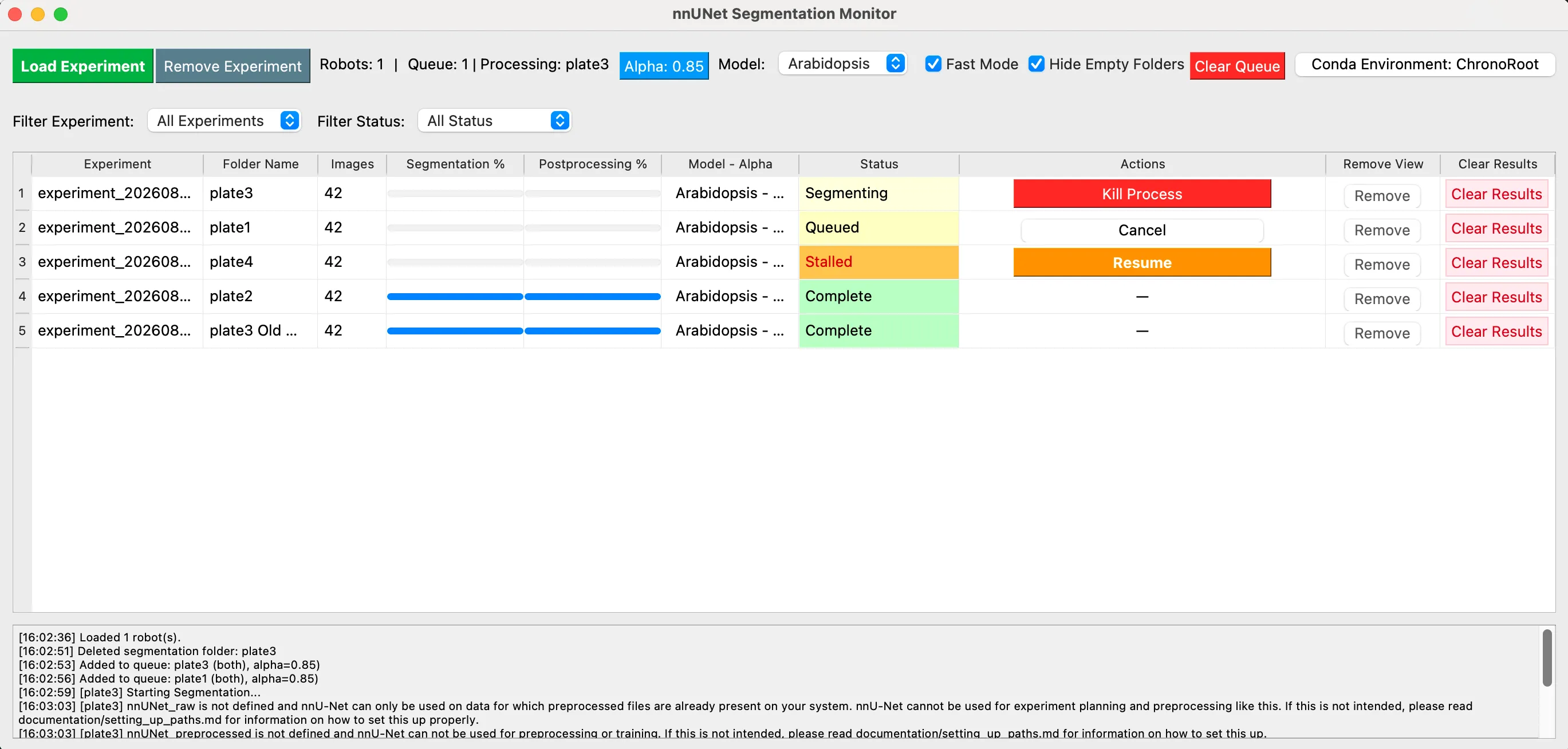
Section titled “Start the pipeline”Click Start Pipeline on a row (green). The folder is queued, and one folder runs at a time. The pipeline has two stages:
- Stage 1, Segmentation: nnU-Net predicts each frame and writes to
Segmentation/Fold_0/. - Stage 2, Temporal postprocessing: a weighted trailing average over frames
(controlled by alpha) writes to
Segmentation/Ensemble/.
- Stage 1, Segmentation: nnU-Net predicts each frame and writes to
-
Watch the progress
Section titled “Watch the progress”Follow the Segmentation % and Postprocessing % bars and the log.
-
Confirm it finished
Section titled “Confirm it finished”When Status is Complete, the folder is ready for the Single Plant Analysis app.
Interface Reference
Section titled “Interface Reference”Top bar (left to right)
Section titled “Top bar (left to right)”| Control | What it does |
|---|---|
| Load Experiment (green) | Add experiment folders (multi-select) |
| Remove Experiment (grey) | Unloads the experiment currently chosen in the Filter Experiment dropdown (you must pick one, not “All Experiments”). Asks to confirm. Files untouched |
Experiments: N label | Count of loaded experiments |
Queue: N | Processing: … label | Queue length and current folder |
| Alpha: 0.85 (blue) | Opens a numeric dialog (0.00–1.00). Temporal smoothing weight used in postprocessing |
| Model: dropdown | Species model to use |
| Fast Mode (checkbox) | Disables test-time mirroring augmentation. Faster, slightly less accurate |
| Hide Empty Folders (checkbox) | Hides rows with status “No Images” (folders with no png/tif/tiff). Untick to show them again |
| Clear Queue (red) | Drops all pending items |
| Conda: ChronoRoot | Set the conda environment name used for the background process |
Filter row
Section titled “Filter row”- Filter Experiment (dropdown)
- Filter Status: All Status, Not Started, Queued, Segmenting, Stalled, Segmented, Postprocessing, Complete, Different Alpha, Different Model, Error
Table columns
Section titled “Table columns”Experiment · Folder Name · Images · Segmentation % · Postprocessing % · Model - Alpha · Status · Actions · Remove · View · Clear Results
[VERIFY: the source guide lists the last columns as “Remove View · Clear Results” with no separator. Check in the real window whether Remove, View and Clear Results are separate columns, and what View does.]Per-row buttons
Section titled “Per-row buttons”- Remove stops monitoring this folder. Nothing is deleted.
- Clear Results (red) permanently deletes the folder
Segmentation/after a confirmation dialog. Source images are untouched. This cannot be undone.
Status values and the action offered
Section titled “Status values and the action offered”| Status | Meaning | Buttons |
|---|---|---|
| Not Started | No results | Start Pipeline |
| Queued | Waiting | Cancel |
| Segmenting | Stage 1 running | Kill Process (if started from this window), otherwise “Running…” |
| Postprocessing | Stage 2 running | Kill Process / “Running…” |
| Stalled | Marked “Started” but no progress update for more than 10 × the average time per image | Resume (continues from the processed files list) |
| Error (Seg) | Stage 1 failed | Restart Pipeline or Resume |
| Error (Post) | Stage 2 failed | Rerun Postprocessing |
| Segmented | Stage 1 done, Stage 2 not | Rerun Postprocessing |
| Complete | Both stages done with the current model and alpha | none |
| Different Alpha | Complete, but done with a different alpha than currently set | Update Alpha (reruns Stage 2 only; fast) |
| Different Model | Complete, but with another model | Rerun Pipeline (everything) or Postproc Only (keep masks) |
| Different Model and Alpha | Both differ | Same two buttons as above |
| No Images | No png/tif/tiff found | none |
Saved settings
Section titled “Saved settings”Conda environment, alpha, model and fast mode are saved to
~/.config/chronoroot/segmentationInterfaceConfig.json and restored the next time
you launch the app.
What “Alpha” Means
Section titled “What “Alpha” Means”Postprocessing blends each frame’s prediction with a running accumulation of earlier frames:
accum = α · accum + (1 − α) · newA higher α trusts history more: the masks are smoother but slower to react to real growth. Defaults are 0.85 for Arabidopsis and 0.60 for Tomato.
Changing alpha later only needs Stage 2, which is why Update Alpha is quick.
Output on Disk
Section titled “Output on Disk”<folder>/Segmentation/ Fold_0/ raw per-frame predictions (PNG) Ensemble/ smoothed masks. The Analysis app reads this folder segmentation_metadata.json status, progress, model, alpha, timestamps, image listMask pixel values:
| Value | Class |
|---|---|
| 0 | Background |
| 1 | Main root |
| 2 | Lateral root |
| 3 | Seed |
| 4 | Hypocotyl |
| 5 | Leaf |
| 6 | Petiole |
| 7 | Ignore |
Command-Line Alternative (Headless)
Section titled “Command-Line Alternative (Headless)”The same pipeline can run without the window:
cd segmentationApppython cli.py /path/to/images --model Arabidopsis # full pipelinepython cli.py /path/to/images --model Arabidopsis --resume # continue an interrupted runpython cli.py /path/to/images --model Tomato --alpha 0.7 --postprocess-onlyFlags: --model/-m (required), --alpha/-a, --output/-o, --device {cuda,cpu},
--fast, --postprocess-only, --resume.
Troubleshooting
Section titled “Troubleshooting””missing PyTorch … monitor mode only”
The conda environment named in the Conda button lacks PyTorch. Use the full install, or correct the environment name.
Model dropdown shows “No models found”
Run ./download_weights.sh in segmentationApp/.
Status is Stalled
The process died or hung. Click Resume.
Segmentation is very slow
It is running on CPU. Enable Fast Mode, or use a CUDA machine.
Closing the window killed my job
This is by design. A confirmation appears first, and the folder is marked “Error: Terminated” in its metadata so you can click Resume.
I deleted a Segmentation folder by mistake
Clear Results is permanent. Rerun the pipeline.