Single Plant Analysis
At a Glance
Section titled “At a Glance”What it does: For one plant at a time, you mark the region of interest and the root’s starting point on a segmented timelapse. The app then tracks the root system frame by frame and measures main root length, lateral root length and count, total length and hypocotyl length. Once several plants are done it builds a statistical report.
The Workflow in Short
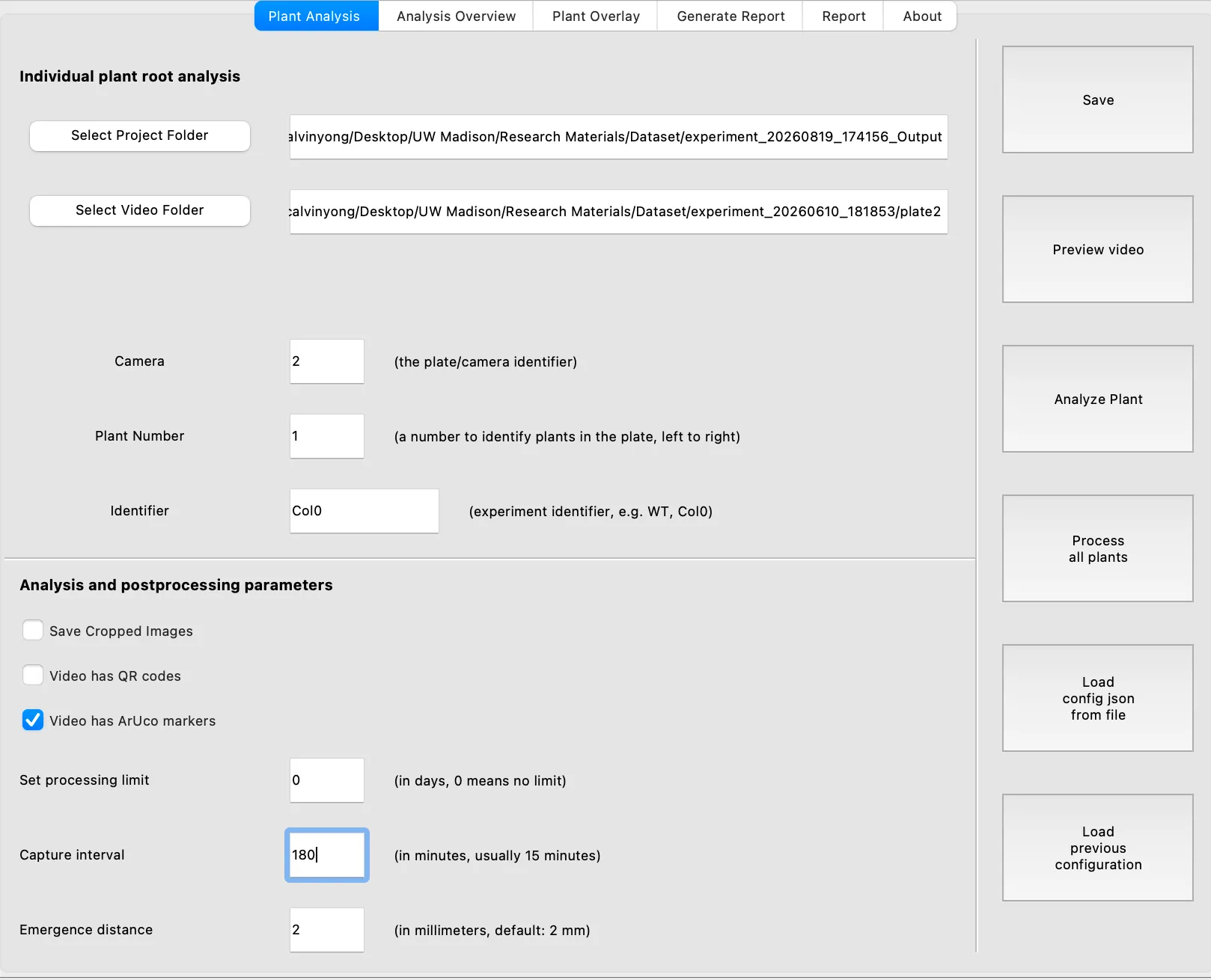
Section titled “The Workflow in Short”- Plant Analysis tab: choose the project folder and video folder, fill in camera / plant / identifier, set scale calibration, press Analyze Plant.
- In the pop-up OpenCV windows: drag the plant’s ROI, then click the root origin.
- Wait while tracking runs. Repeat for each plant (change Plant Number, and Camera if needed).
- Analysis Overview tab: check every plant is Finished and review the error rates. Inspect plants in Plant Overlay. Remove or redo bad ones.
- Press Process all plants.
- Generate Report tab: pick the statistics options and press Generate report.
- Report tab: browse the generated figures and open the report folder.
The sections below walk through each of these in detail.
Before You Start
Section titled “Before You Start”Every video folder needs:
- Frames (
.png,.tifor.tiff) in the folder. - A completed segmentation:
<video folder>/Segmentation/Ensemble/containing mask files. Without it, Analyze Plant stops with “Found N images but no segmentation files!”. Run the Segmentation app first.
If the video folder has no images but has Segmentation/segmentation_metadata.json,
the app reads the images from the input_path stored there. The images may live
elsewhere as long as they have not been moved.
Launch the App
Section titled “Launch the App”The installers create a ChronoRoot Analysis launcher (first
launch: right-click, then Open). Launch from a terminal if you want to see the
progress messages (see Step 9).
conda activate ChronoRootcd singlePlantAnalysispython run.pyPart 1: Analyze One Plant
Section titled “Part 1: Analyze One Plant”Everything in this part happens on the Plant Analysis tab, under the heading “Individual plant root analysis”.
-
Choose the project folder
Section titled “Choose the project folder”Click Select Project Folder and pick (or create) the output location. The app creates
Analysis/,Report/,Removed/andproject_config.jsoninside it.The same project field appears on the Generate Report tab and is kept in sync.
-
Choose the video folder
Section titled “Choose the video folder”Click Select Video Folder and pick the folder with the timelapse images. It must contain a
Segmentation/subfolder (see Before You Start).If you aligned your images first, pick
<plate>/aligned. -
Name the plant
Section titled “Name the plant”Fill in the three identification fields. Empty fields revert to
1.Field What to enter Becomes folder Camera Plate/camera identifier. Default 1cam_<value>Plant Number Number identifying the plant in the plate, left to right. Default 1plant_<value>Identifier Experiment/genotype label, e.g. WT,Col0. Default1First folder level under Analysis/ -
Set the scale calibration
Section titled “Set the scale calibration”This is how pixels become millimetres. Pick one option:
Option When to use Video has ArUco markers (checkbox) Preferred. Marker width is taken as 15 mm. Tried first if both boxes are ticked Video has QR codes (checkbox) Older datasets. The QR code is treated as 1 cm (10 mm) Neither ticked: Manual calibration panel appears Enter Known (mm) and Pixels. Pixel size = mm ÷ pixels For manual calibration, click Open Calibration Helper (it only appears in manual mode). It opens a small viewer on the first image of the video folder:
- Left-click two points that are a known distance apart. A distance line and its pixel length are drawn.
- Click Copy Distance to copy the pixel length to the clipboard.
- Paste it into Pixels and enter the real distance in Known (mm).
Mouse wheel zooms, right-click-drag pans, and Clear Points resets. The field placeholders show an example of 10 mm / 240 px.
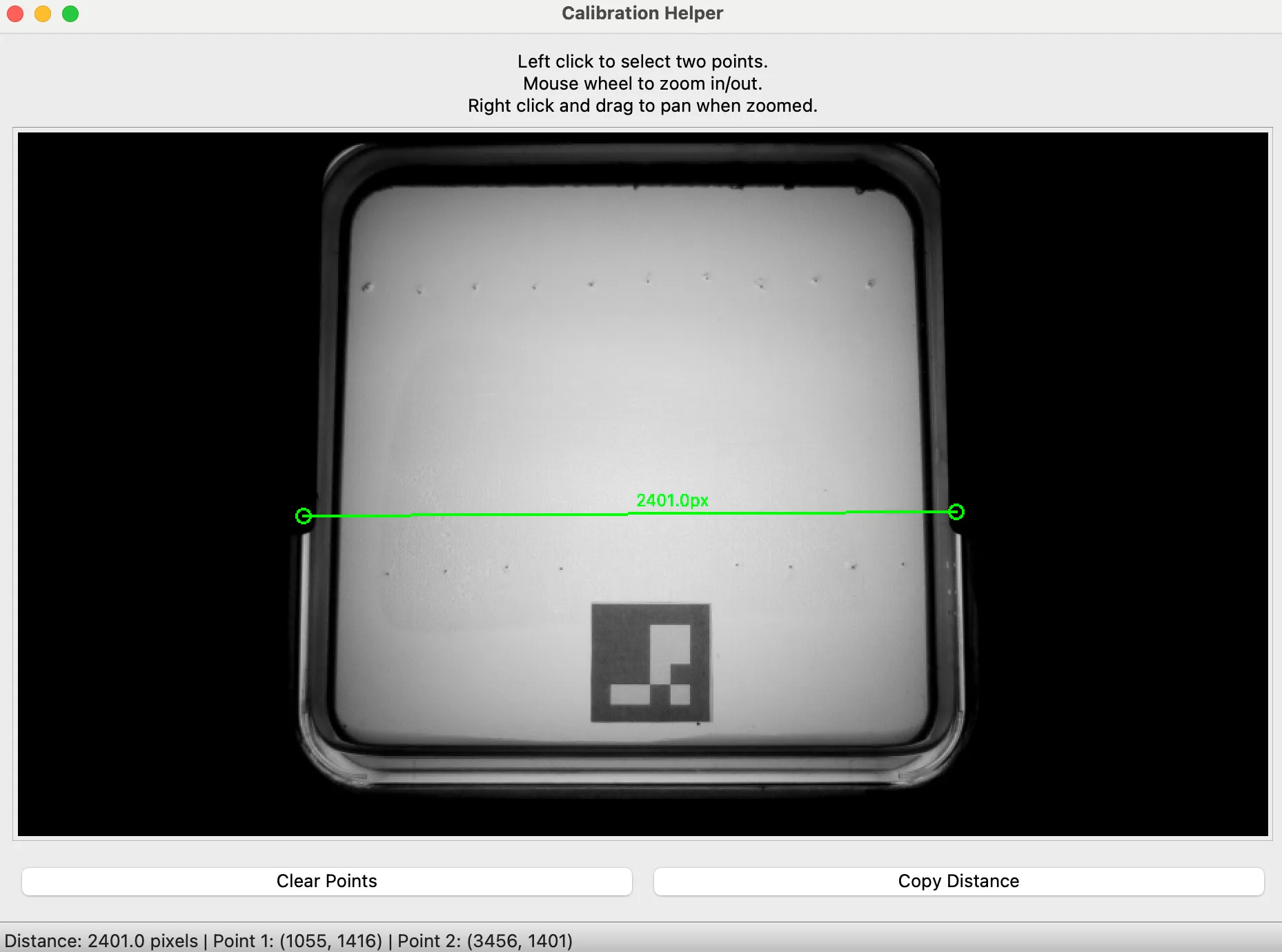
FIG_02 · Calibration HelperThe Calibration Helper with two points selected. Here I know the plate is 10cm wide. I can then use the pixel distance to calculate the scale of my image
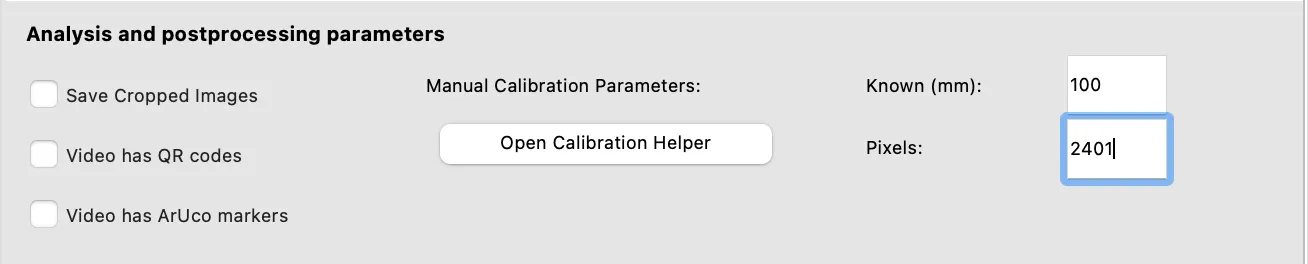
FIG_03 · Manual calibrationManual calibration, with Known (mm) and Pixels filled in. -
Check the parameters
Section titled “Check the parameters”Under “Analysis and postprocessing parameters”, the controls are:
Control Details Set processing limit Days of the timelapse to process. 0 = no limit Capture interval Minutes between frames. Affects time axes and hour binning Emergence distance mm. Distance from the main root at which a lateral root counts as emerged (used for lateral-root angle analysis) Save Cropped Images (checkbox) Saves per-plant crops. Required for making growth timelapse videos -
Preview The Video
Section titled “Preview The Video”Click the “Preview Video” button to open the sequence viewer. Use the scrollbar to navigate between frames and press the “S” button to toggle the segmentation overlay for visual inspection. Use this step to spot any segmentation errors and determin if a plant is fit to be analyzed.
-
Click Analyze Plant and draw the ROI
Section titled “Click Analyze Plant and draw the ROI”Click Analyze Plant. The app validates your inputs, saves the configuration, and starts the analysis in a separate process. A window called “Select Plant ROI” opens, showing the last frame.
Click and drag a rectangle around the plant. Include the whole root’s final extent, but avoid neighbouring plants if you can.
Key Action Enter Confirm R Redo Q Quit 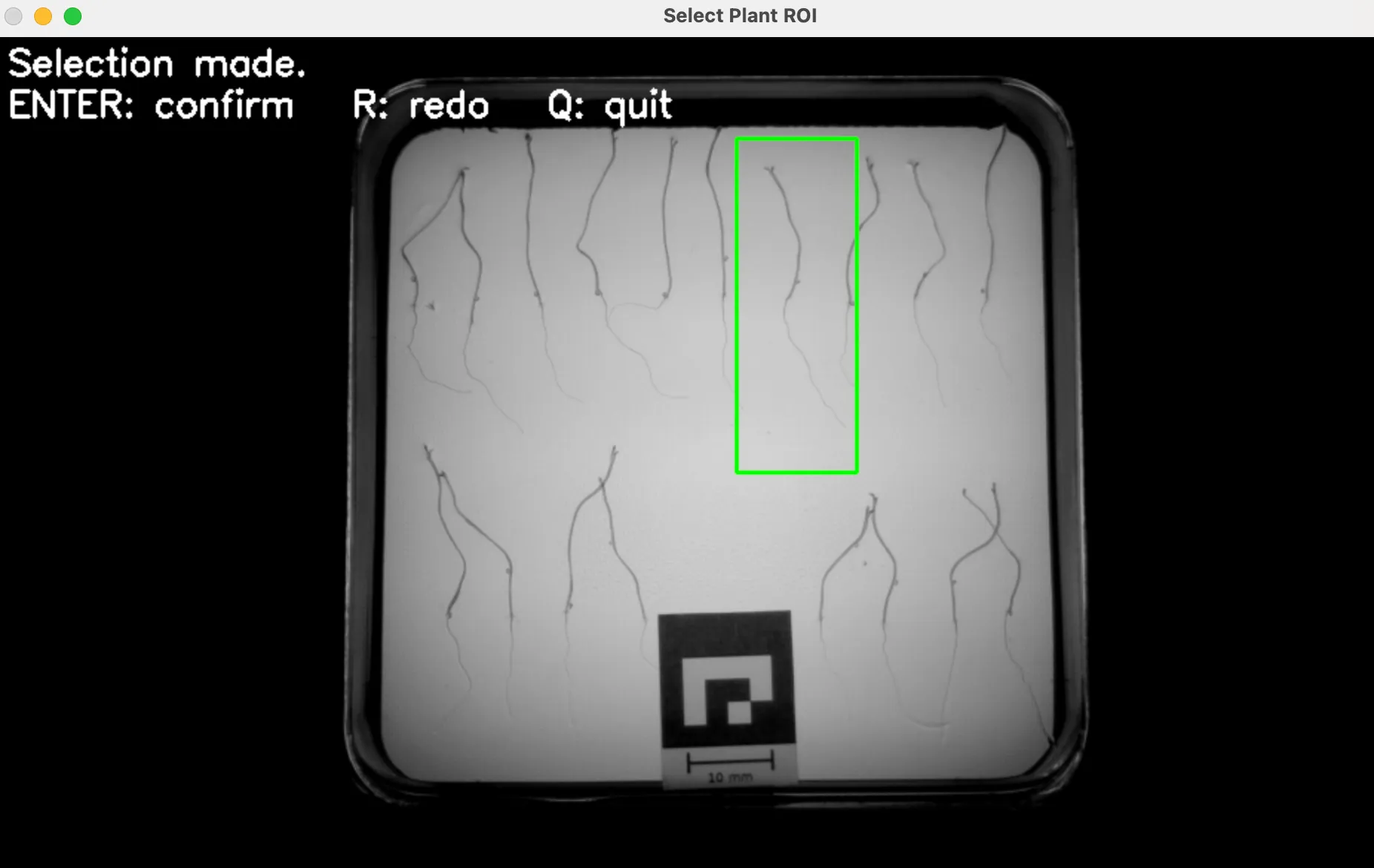
FIG_04 · Select Plant ROIThe Select Plant ROI window with a plant selected. -
Click the root origin
Section titled “Click the root origin”A second window, “Select Root Origin”, shows the cropped ROI.
- Drag the trackbar to scrub through time.
- Press S to toggle the segmentation colour overlay.
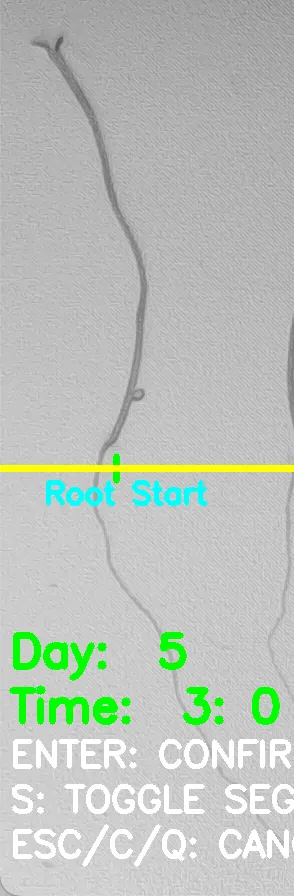
- Click where the root starts. A green cross and a “Root Start” line appear.
- Press Enter to confirm.
Key Action Enter Confirm (only works after you have clicked) S Toggle segmentation overlay Esc / C / Q Cancel 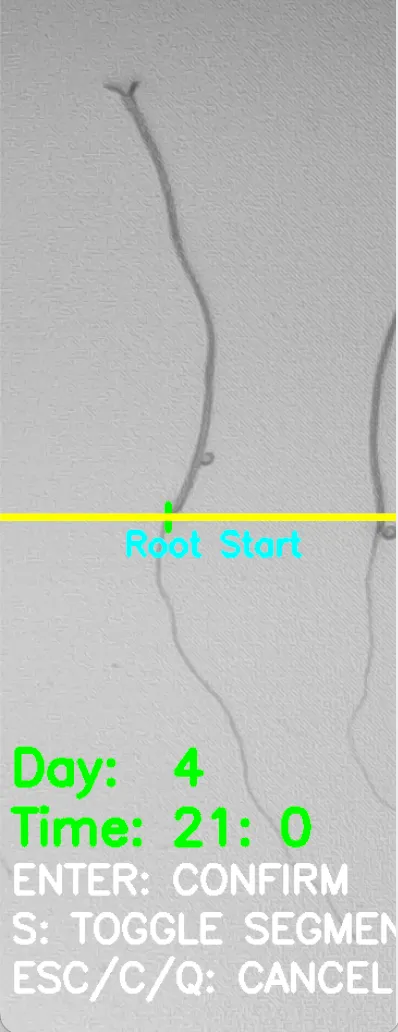 Good selection
 Bad selection
FIG_05 · Select Root Origin On the bad selection, the root origin was selected based on the original seed position, however shift in the plants position during growth caused the root to be established above the selected point, causing any measured root growth above it to be discarded. Use the slider on the top of the window to go through the whole movie and accurately select the root origin.
-
Wait for tracking, then repeat for the next plant
Section titled “Wait for tracking, then repeat for the next plant”Tracking runs through every frame. Progress prints in the terminal that launched the app.
Then repeat Steps 2 to 8 for each plant: change Plant Number (and Camera if needed), and press Analyze Plant again.
Messages you may see
Section titled “Messages you may see”- “Please specify a video folder first!”
- “Video folder does not exist!”
- “No images found in the video folder!”
- “Found N images but no segmentation files! … Segmentation is required for analysis.”
- “Please provide both known distance and pixel distance for manual calibration, or enable “Video has QR codes” or “Video has ArUco markers”!”
- “Calibration values must be positive numbers!” / “Invalid calibration values!” (known distance: a number; pixel distance: an integer)
Other buttons on the Plant Analysis tab
Section titled “Other buttons on the Plant Analysis tab”| Button | What it does |
|---|---|
| Save | Writes all fields to the global config and to <project>/project_config.json |
| Preview video | Opens the sequence viewer on the raw frames |
| Analyze Plant | Validates inputs, saves config, and starts the analysis in a separate process |
| Process all plants | Runs post-processing for the whole project (see Step 12) |
| Load config json from file | Pick any saved .json config and fill the form |
| Load previous configuration | Restore the last saved settings (project config if it exists, otherwise global) |
Part 2: Review, Process and Report
Section titled “Part 2: Review, Process and Report”-
Check every plant on the Analysis Overview tab
Section titled “Check every plant on the Analysis Overview tab”Open the Analysis Overview tab. It lists every analysed plant under
<project>/Analysis/and refreshes whenever you switch to it.Check that each plant’s Status is Finished and look at the Error Rate (lower is better). Select a row to use the buttons below it.
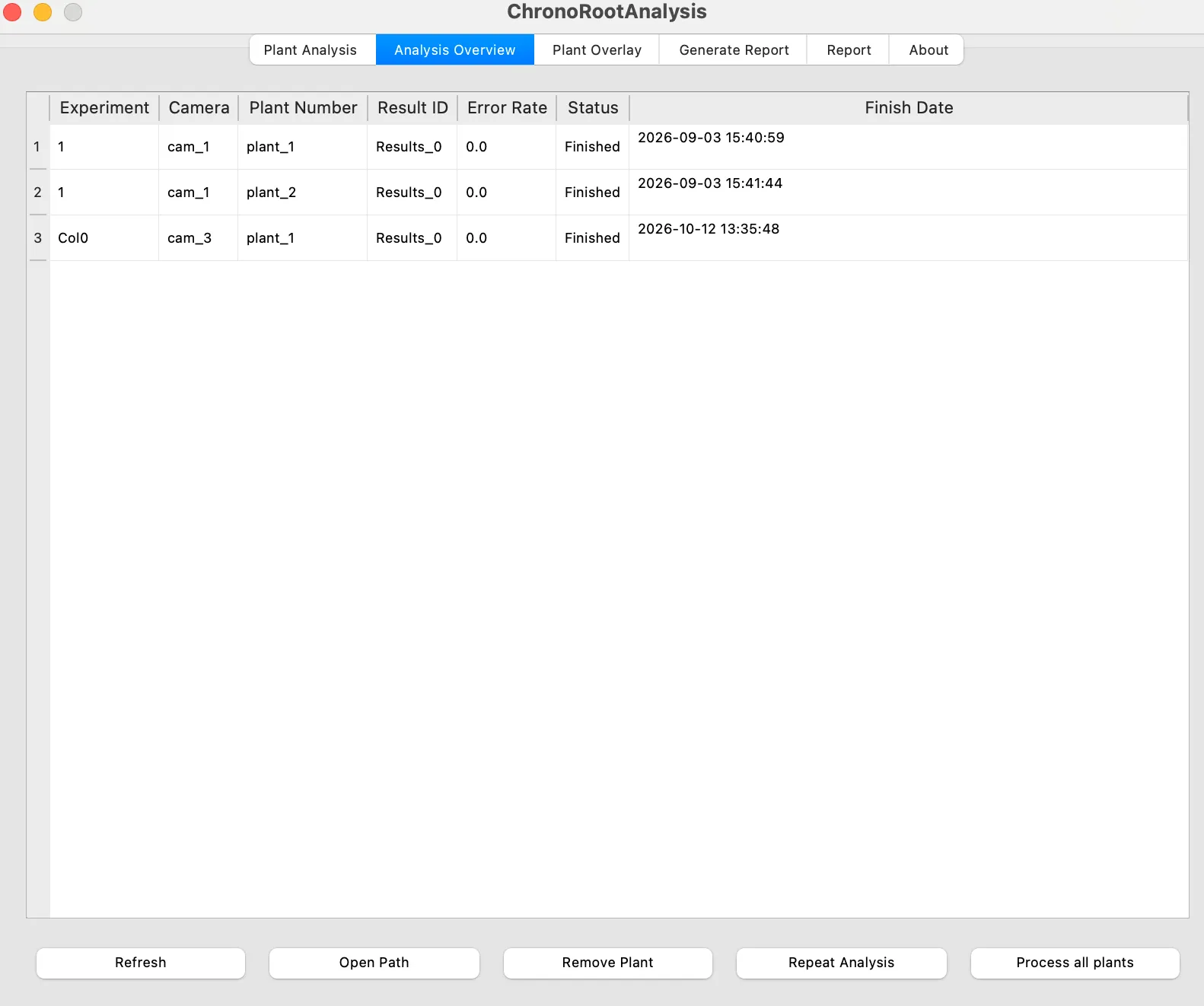
FIG_06 · Analysis OverviewThe Analysis Overview tab with three finished plants. -
Inspect plants on the Plant Overlay tab
Section titled “Inspect plants on the Plant Overlay tab”The Plant Overlay tab provides visual inspection capabilities for both segmentation results and plant root performance analysis. This interface allows you to discard problematic plants or restart the entire process if needed. Redoing the analysis will make you choose the ROI and root start position from scratch. Overlay Image to blend the colour-coded tracking result at 50 %. The right image is the plant’s summary plot.
For a closer look, click View full sequence to step through every frame.
If a plant looks wrong, fix it:
Situation Use Same ROI and root origin are fine, just re-track Repeat Analysis (Analysis Overview tab) You need a new ROI and root origin Redo Analysis (Plant Overlay tab) You want the plant out of the report Remove Plant 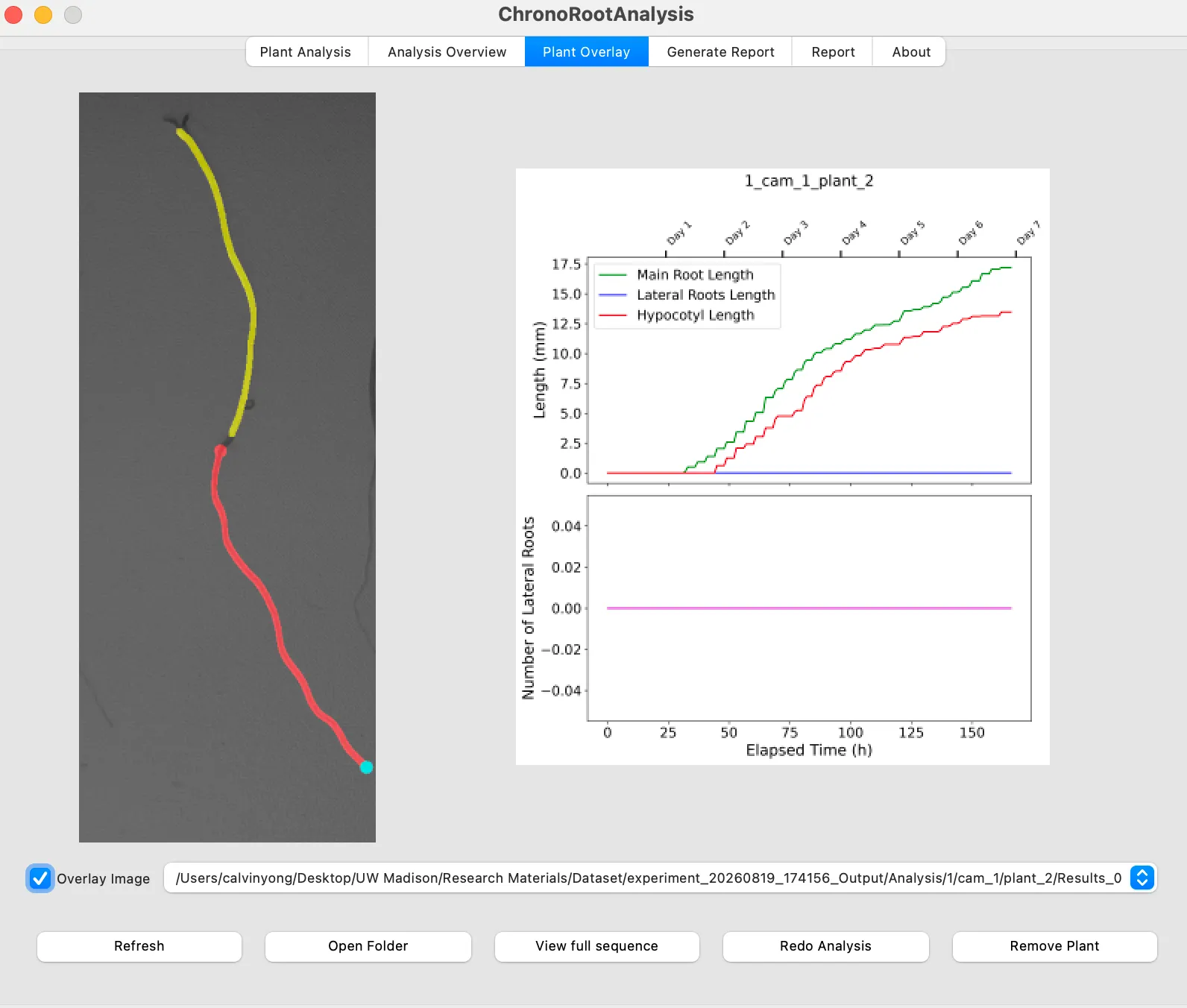
FIG_07 · Plant OverlayThe Plant Overlay tab with the overlay on and the summary plot on the right. -
Process all plants
Section titled “Process all plants”Press Process all plants (on the Plant Analysis, Analysis Overview or Generate Report tab). This is post-processing: pixel-size conversion, hourly tables, per-plant plots and lateral-angle data.
Do this before generating the report.
-
Generate the report
Section titled “Generate the report”Open the Generate Report tab, choose the analyses you want, and press Generate report. Report generation can take a while; progress prints in the terminal.
Statistical comparisons are between experiments (identifiers). See the tab reference for every option.
-
Browse the report
Section titled “Browse the report”Open the Report tab. Pick a figure from the dropdown, or click Open Report Path to open the report folder.
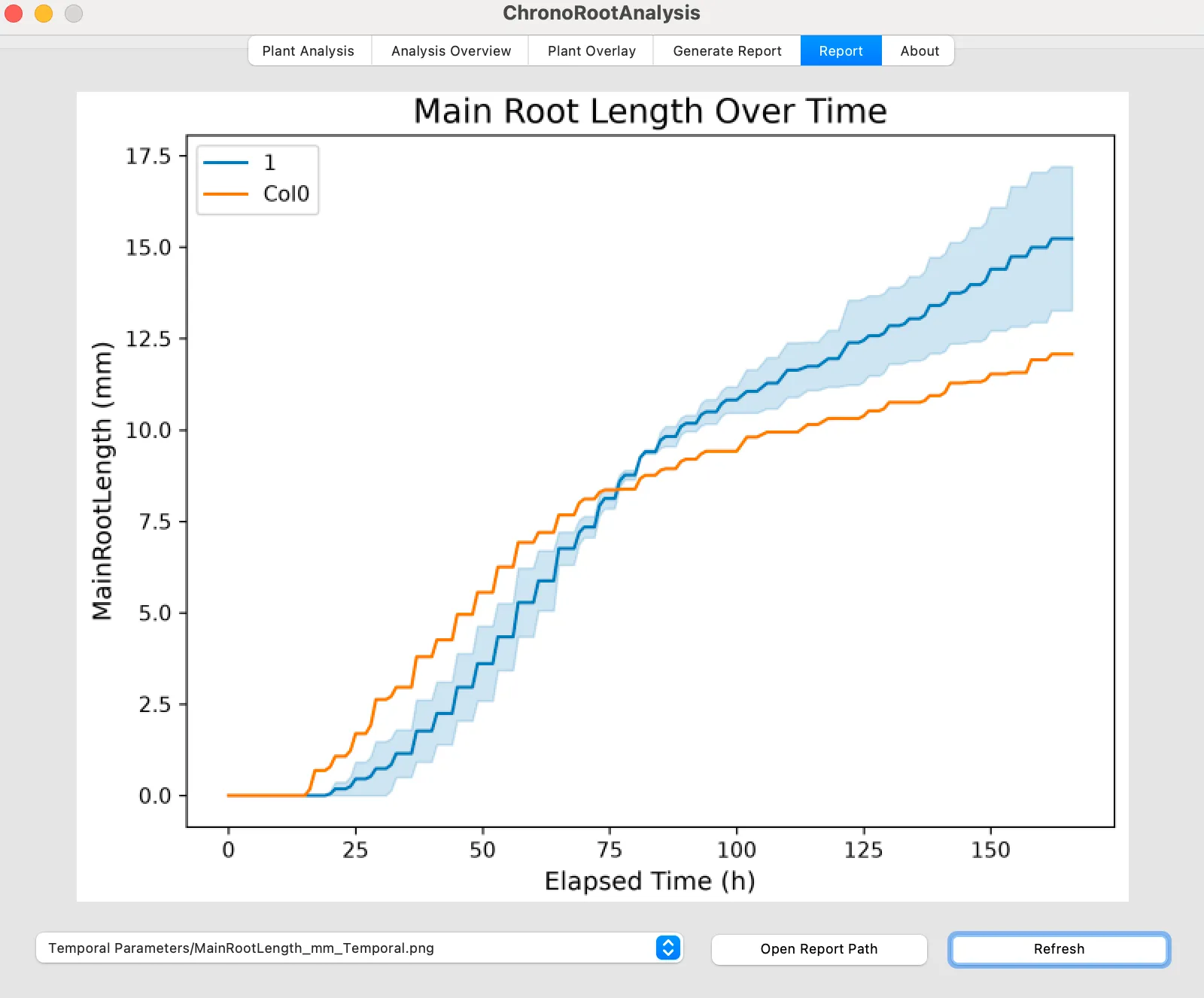
FIG_08 · Report tabThe Report tab showing a generated figure.
Tab Reference
Section titled “Tab Reference”Click a tab name to expand it.
Tab 1: Plant Analysis
The controls on this tab are covered step by step in Part 1.
Tab 2: Analysis Overview
A sortable table listing every analysed plant under <project>/Analysis/.
Columns: Experiment · Camera · Plant Number · Result ID · Error Rate · Status · Finish Date
- Status: Finished when a
log.txtexists in the result folder, otherwise Not finished (also shown while the analysis is still running). - Error Rate: read from the last line of
log.txt(the fraction of frames where tracking failed), rounded to 4 decimals. Lower is better. - Result ID (
Results_0,Results_1, …): each analysis run creates a new result folder (up to 50). Later steps use the latest one.
Buttons (select a row first):
| Button | What it does |
|---|---|
| Refresh | Reload the table |
| Open Path | Opens the plant’s result folder in the system file manager |
| Remove Plant | Moves the folder to <project>/Removed/… (same structure). Hides it from reports without deleting data; to restore, move it back |
| Repeat Analysis | Quick re-run: re-tracks using the saved ROI and root start point |
| Process all plants | Same as on the Plant Analysis tab |
Tab 3: Plant Overlay
Visual quality check of one plant.
- Left image: the last frame, cropped to the ROI. With Overlay Image ticked, the colour-coded tracking result is blended at 50 %.
- Right image: the plant’s summary plot (
<experiment>_<camera>_<plant>.png). A placeholder shows until post-processing has produced it. - A plant dropdown (full result-folder paths) selects which plant to inspect.
Overlay colours: main root red, lateral roots green, hypocotyl yellow, root tip marker cyan.
| Button | What it does |
|---|---|
| Refresh | Refresh the plant list |
| Open Folder | Open this plant’s result folder |
| View full sequence | Opens the ChronoRoot Viewer: slider through every frame (click anywhere on the slider to jump), Play/Pause, Toggle Segmentation, mouse-wheel zoom, click-drag pan. Shows “Day: N Time: HH:MM” |
| Redo Analysis | Manual re-run: discards the saved ROI and root start so you pick new ones |
| Remove Plant | Move to Removed/ |
Tab 4: Generate Report
Controls which analyses go into the report. Project folder, processing limit and capture interval are repeated here and kept in sync with the Plant Analysis tab.
| Section | Controls | Defaults |
|---|---|---|
| Statistics | Average intervals before testing (checkbox). Time series stats interval (dt, in hours) | dt = 6 |
| Functional PCA | Perform Functional PCA on time series, Normalize FPCA Boxplots, Number of components | components = 2 |
| Convex hull | Do Convex hull analysis, Save images for each day, Days to report (comma-separated, e.g. 3,5,7) | |
| Growth speeds + Fourier | Evaluate Growth Speeds and perform Fourier Analysis, Speeds stats interval (dt, in hours) | dt = 6 |
| Lateral root angles | Do Lateral Root Angles Analysis, Emergence distance (mm), Days to report, First LR Tip Stats interval (dt, in hours) | emergence 2 mm, dt = 6 |
| Bottom row | Processing limit, Capture interval | 0, 15 |
The tab also shows this explanation: “Hypothesis testing uses Mann-Whitney test every dt interval. If selected, an average value will be used, or a step (i*dt) otherwise”.
Buttons: Save, Process all plants, Generate report, Load previous configuration.
Run Process all plants first, then Generate report.
Tab 5: Report
A figure browser. The dropdown lists every PNG one level inside <project>/Report/
(newest names first).
Buttons: Refresh, Open Report Path.
Tab 6: About
Logo, project description, link, Check for Updates (runs git pull in the install
folder; restart afterwards) and the date of the last local commit.
Output on Disk
Section titled “Output on Disk”Per plant:
<Project>/Analysis/<Identifier>/cam_<Camera>/plant_<Plant>/Results_<k>/ Results_raw.csv per-frame: MainRootLength, LateralRootsLength, NumberOfLateralRoots, TotalLength, HypocotylLength PostProcess_Hour.csv hourly, calibrated (mm) after "Process all plants" PostProcess_Original.csv metadata.json ROI, root start, pixel size, paths log.txt completion date + error rate Images/ (Seg, SegMulti, Input*) *Input only if "Save Cropped Images" Graphs/ RSML/ root graphs and RSML exportProject-wide:
<Project>/Report/ Individual plant plots/ Temporal Parameters/ stats text files, summary table CSV, mean ± SE plots (png/svg) Temporal_Data.csv Convex Hull and Area Analysis/ (if enabled) + Convex_Hull_Data.csv FPCA/ (if enabled) GrowthSpeeds and Fourier/ (if enabled) Angles Analysis/ (if enabled) + LateralRootsData.csv, SyncronizedFirstLR.csv<Project>/Removed/ plants you removed<Project>/project_config.json saved settings (reproducibility)Settings are also saved globally to ~/.config/chronoroot/mainInterfaceConfig.json.
Measured temporal parameters in the report: Main Root Length, Lateral Roots Length, Total Length (all mm), Number of Lateral Roots, Discrete Lateral Density (LR/cm), Main Over Total (%), Hypocotyl Length (mm).
Batch and Headless Scripts
Section titled “Batch and Headless Scripts”In singlePlantAnalysis/:
1_analysis.py --config <json> [--rerun | --restart]2_postprocess.py --config <json>3_generateReport.py --config <json>5_rerun_all_analysis.py
The GUI buttons call these.
[TODO: the source guide lists these scripts but gives no example command lines or a description of what a config .json contains. Add real examples if you want them on this page.]Troubleshooting
Section titled “Troubleshooting””no segmentation files”
Run the Segmentation app first. The video folder needs Segmentation/Ensemble/.
Scale looks wrong, or lengths are off by a constant factor
The calibration is wrong. Check the ArUco / QR checkbox against the marker actually in your images.
If no marker is found in the first 20 images, post-processing falls back to a default of 0.04 mm/px.
[VERIFY: confirm how visible this fallback is to the user, and whether the app warns about it.]Root start click ignored, or the window closes
Enter only confirms after you have clicked a root start. Esc, C and Q cancel.
Plant stays “Not finished”
The analysis is still running or crashed. Check the terminal. Use Redo Analysis.
High error rate
Poor segmentation or a wrong ROI/origin. Use View full sequence with Toggle Segmentation, then Redo Analysis.
Main root length missing or zero early in the series
This is a known issue under investigation in the post-processing step (see TODO.md in the repository).
no Qt platform plugin could be initialized (Linux/WSL)
Missing Qt/X11 libraries, or you are running under WSL1. See WSL_INSTALL.md, and the Installation Guide.
The folder opener does nothing
The app shows the path in a dialog so you can open it manually.